User Guide and Technical Reference
This utility provides a high-speed bridge between NX CAM tool database files (.dat) and Microsoft Excel (.xlsx). It is specifically designed to facilitate bulk library management, allowing users to leverage spreadsheet features to build complex tool databases that would otherwise require manual, one-at-a-time entry within the NX interface.
Supported NX Database Files
This tool is optimized for the following NX Manufacturing database files:
- assembly_database.dat
- holder_database.dat
- multitool_database.dat
- segmented_tool_database.dat
- shank_database.dat
- tool_database.dat
- trackpoint_database.dat
Environment Configuration
To point NX to custom locations for these files, modify the paths in your ugii_env.dat file. These definitions take precedence over system defaults.
Backup Recommendations
It is recommended to maintain backup copies of your original .dat files and associated .def and .tcl files before performing bulk updates or deploying new libraries to a production environment.
Database Structure Overview
The software is engineered to parse and reconstruct the standard NX ASCII database format. Understanding this structure is key to successful bulk editing:
| Element | Description |
|---|---|
| #CLASS | Defines the specific tool category (e.g., MILLING_DRILLING or HOLDER) |
| FORMAT | Defines the column headers and the exact sequence of data |
| DATA | | Prefixes every individual record. Each column must be separated by the pipe (|) character |
| #END_DATA | Signals the conclusion of a specific class section |
| # Comments | Metadata, system notes, or headers. This tool preserves all lines starting with # during conversion |
Bulk Library Management with Excel
The primary purpose of this tool is to replace manual data entry with efficient bulk processing.
Building Tool Libraries
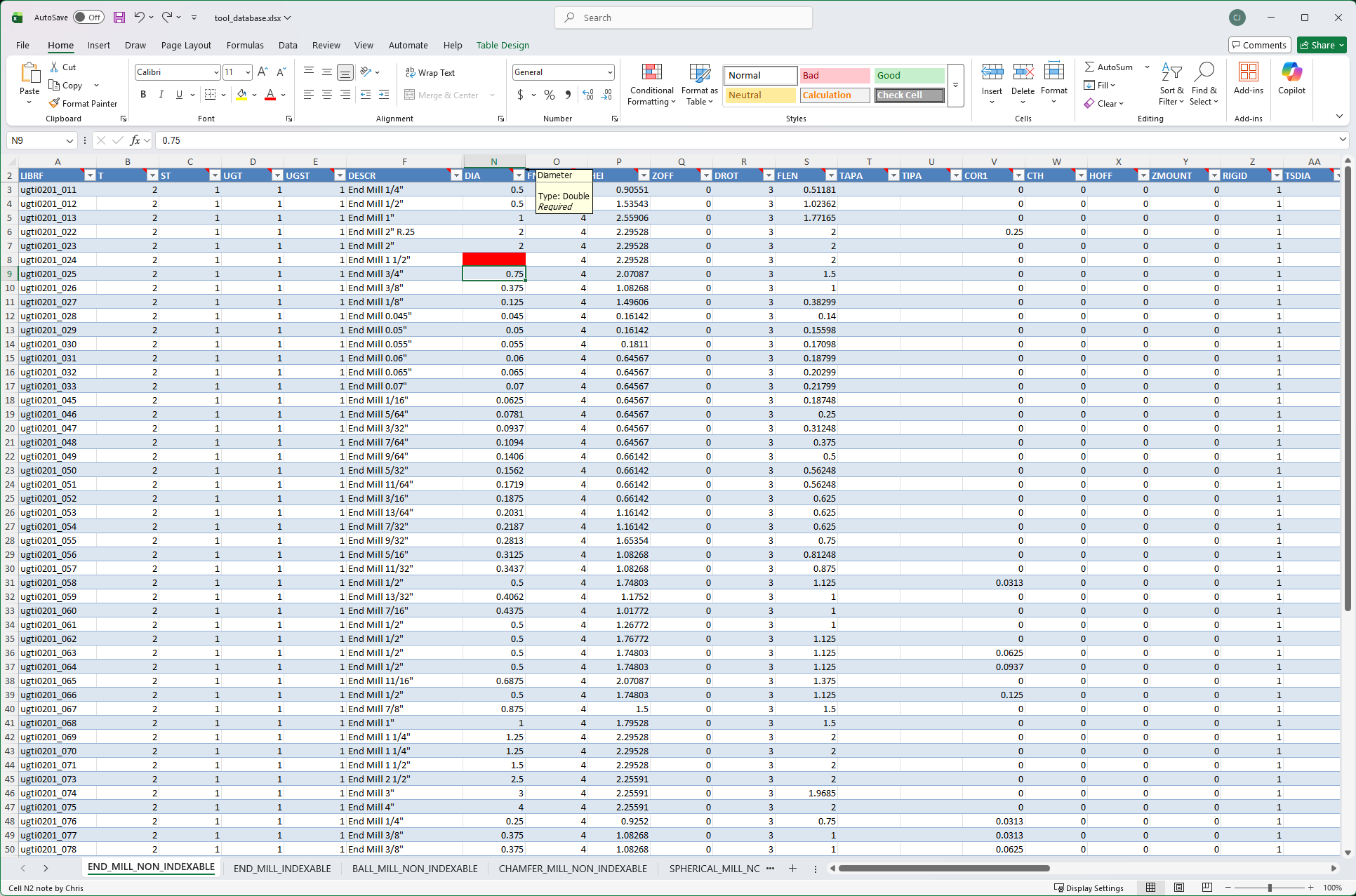
- Initial Export: Convert an existing .dat file to Excel to generate the correct template structure.
- Manufacturer Data Integration: Tool manufacturers typically provide technical specifications in tabular formats (CSV or Web tables). You can copy this data and paste it directly into the corresponding columns in the Excel sheet.
- Mass Editing: Use Excel's "Click and Drag" or "Find and Replace" features to update hundreds of values—such as material codes (MATREF) or coolant settings (CTH)—simultaneously.
- Validation: Before converting back to .dat, the tool will check your spreadsheet for errors, such as duplicate Library References (LIBRF) or values that exceed system limits (e.g., negative diameters).
Working with Sheets
- Each
#CLASSfrom the database is turned into a separate Tab in Excel. - Do not rename the Tabs, as the converter uses the Tab name to recreate the
#CLASSheader in the database. - The second row in Excel contains the internal database keys (e.g., DIA, FLEN). The tool uses these to map your data back to the correct columns.
Common Errors and Troubleshooting
| Error Message | Cause | Resolution |
|---|---|---|
| Duplicate Library Reference | Multiple entries share the same LIBRF | Ensure every tool has a unique ID unless using rtype 2 exceptions |
| Missing separator '|' | A data row count does not match the FORMAT definition | Check that all columns are properly separated |
| Value below minimum | Data exceeds physical or system constraints | Adjust the value in Excel to meet the required range (e.g., Diameter > 0) |
| DATA before FORMAT | Structural error in the source file | Ensure the FORMAT line appears immediately after the #CLASS definition |
CLI Operational Guide
The Command Line Interface is available for users who wish to automate conversion tasks via batch files or scripts.
Options
| Flag | Description |
|---|---|
| -o, --output <path> | Specify the output file or directory |
| -y, --overwrite | Automatically overwrite existing files |
| -q, --quiet | Minimize console output for cleaner logs |
| --log <path> | Save session output to a text file |
| --dat-only / --xlsx-only | Restrict processing to a specific file type |
Exit Codes
0- Successful processing and validation1- Failed. Check the log for validation errors or missing files
Support
For bug reports, feature requests, or general inquiries, please visit the Contact page.